Getting started
WhatCameUp listens to your sales and support calls for you. Every call you bring in is transcribed, summarised, and asked the questions your business cares about, such as "Did the agent offer a test drive?" Each answer points to the moment in the call it came from, so you can play it and check.
How it fits together
- Your team is where everything lives. You can invite colleagues, and each team has its own calls, credits and settings.
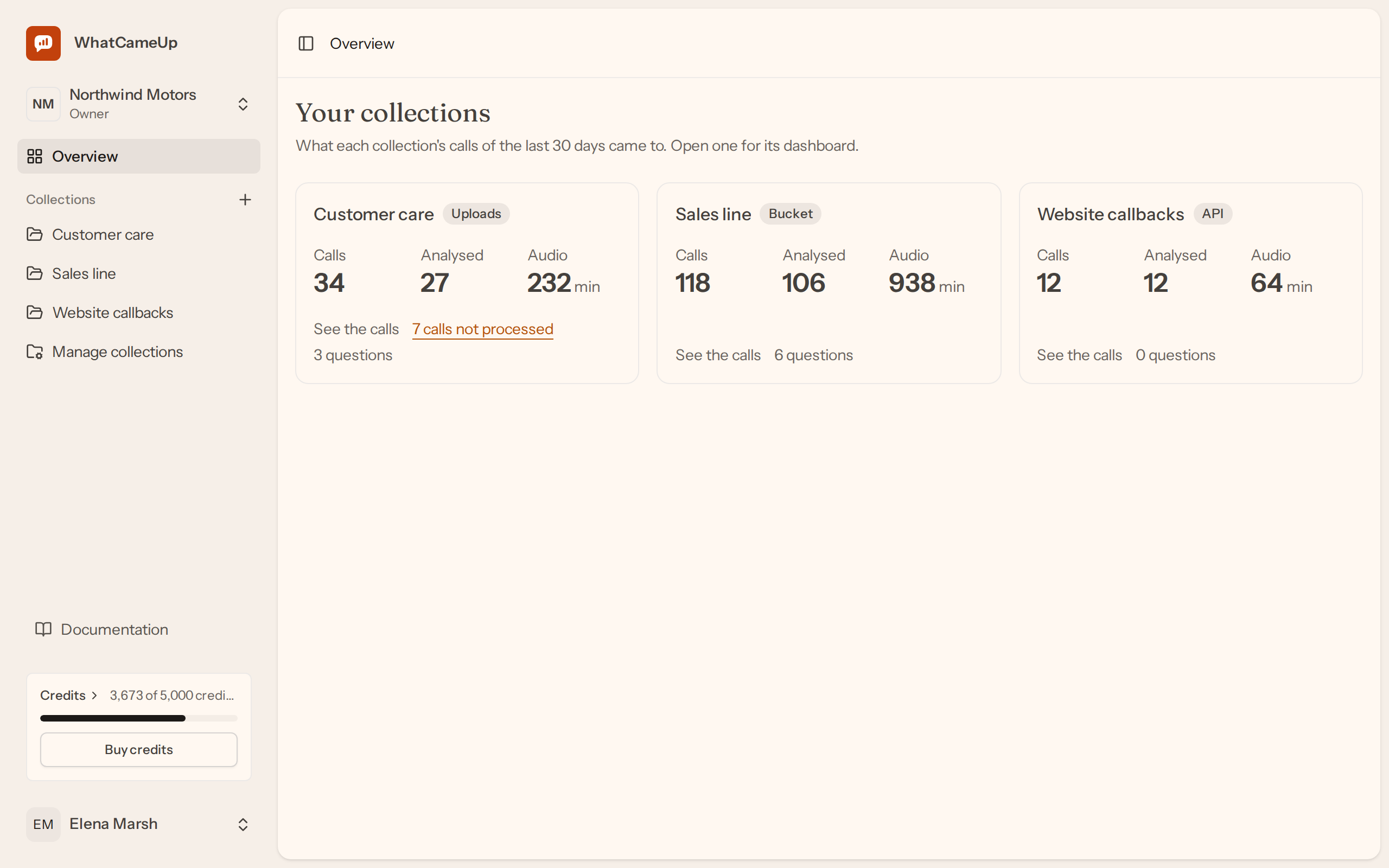
- Collections hold your calls. Each collection takes calls in one way: from a cloud storage bucket your phone system saves to, uploaded in the browser, or sent through the API. Sales calls and customer care calls usually go in separate collections, as they need different questions. See Collections.
- Processing a call transcribes it, then has the AI analyse it: a summary, why the call happened, how the customer felt, and your questions. You can do both at once, or transcribe calls first and analyse them later. A collection processes its calls as they arrive, or waits for you to choose. See Processing calls.
- Questions are what you want to learn from every call in a collection. You write them, or describe what you want to know and the assistant drafts them. See Questions.
- Dashboards add it all up, for each collection, over the last 7, 30 or 90 days, as a report you can print or download, and in an email to your team each week. See Dashboards, reports and exports.
- An AI Analyst, once hired for a collection, briefs you on what changed and what deserves attention. See AI Analyst.
The sidebar lists your collections. Choose one to open its pages below it: its Dashboard, its Calls, its Questions, its Analyst and its Settings; the questions and settings are for team owners and admins. A collection that takes uploads has Upload calls on its Calls page. Overview, at the top, shows every collection at a glance. Owners and admins create collections with + beside Collections, and find them all, with their buckets, under Manage collections.
Your first steps
- Set up your team. When you create it, choose the language its summaries and reports are written in, its time zone, and, if you like, a sentence or two about your business, which the AI reads before every call. You can change them later under Settings, Team.
- Create a collection. As a team owner or admin, choose + beside Collections in the sidebar, then the kind of calls it takes and how they come in. To try WhatCameUp quickly, pick Uploads. Its When new calls arrive setting says whether calls wait for you or are transcribed and analysed as they arrive.
- Bring in a few calls. Upload some recordings, connect your bucket, or send them through the API.
- Check your questions. Support and Sales collections start with a few questions for their kind of calls. Open the collection's Questions to change them, add your own, or let the assistant draft them from a sentence or two about what you want to know.
- Process the calls, if the collection waits for you. Its dashboard says how many calls are waiting, and about how many credits processing them would take. In its Calls, choose Process for a call, then Transcribe and analyse or Transcribe only, or process all of them at once. Each shows what it will cost before you start.
- Read the results. Open a call to read its transcript, summary and answers, and open the collection's dashboard to see what all its calls came to.
Every new team starts with 300 free credits, enough for 300 minutes of calls, with no card needed.
Getting help
If something isn't clear, or doesn't work as these pages say, write to us from the contact address at the bottom of the page.