Connecting a bucket
If your phone system saves its recordings to cloud storage, WhatCameUp can import them from there as they arrive. It works with Amazon S3, Cloudflare R2, Backblaze B2, Wasabi, DigitalOcean Spaces, and any other S3-compatible storage. Your recordings stay in your bucket: WhatCameUp reads them when it processes a call, and never changes or deletes them.
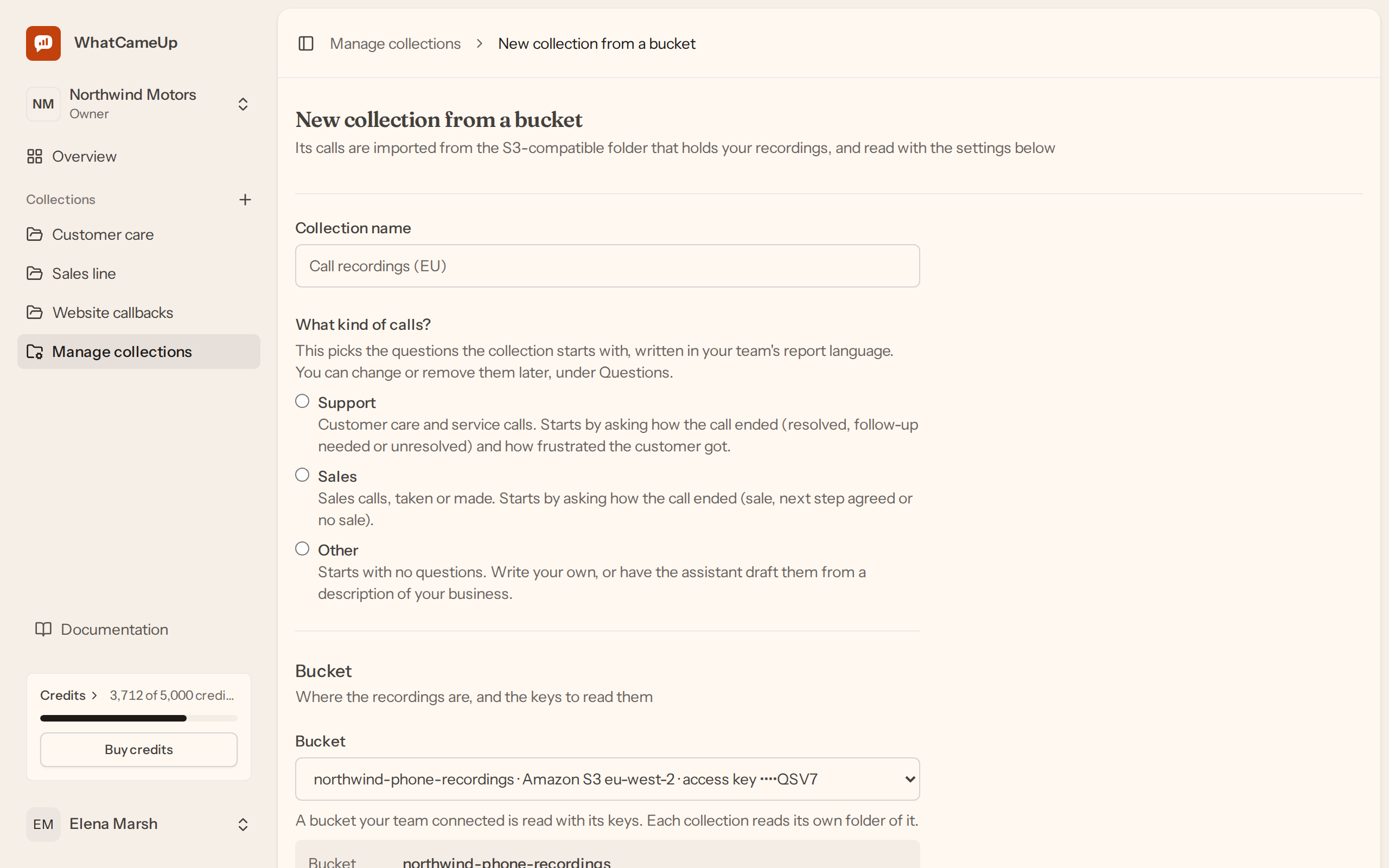
Connecting
Choose + beside Collections in the sidebar, then Bucket. If your team connected a bucket already, choose it under Bucket: its keys are not asked for again. Otherwise choose Connect another bucket, and give:
- Storage provider, endpoint and region: where the bucket is. The endpoint is only needed for providers other than Amazon S3.
- Bucket: the bucket's name.
- Access key ID and secret access key: keys for an account that may list the bucket and read its files (
s3:ListBucketands3:GetObject). Read-only keys are enough unless you want results written back. The secret is stored encrypted and never shown again.
Then give the collection's own settings:
- Folder: if the recordings are in a folder, its path, such as
sales/. Choose Browse to pick the folder from the bucket's own, with a few of the recordings in each. - Metadata: turn on The calls come with metadata when the file names, a metadata file beside each recording or your own systems tell more about each call, such as the agent or your call ID. Its settings show once it is on.
- Import: everything in the folder, only calls from now on, or calls between two days, either of which you can leave open. A call's date is the one in its file name, when the collection's file name pattern has a date, or else when its file was added to the bucket. When you change the dates later, WhatCameUp looks through the folder again; calls imported before stay, until you remove those the new dates leave out, as described under Calls left out after a change below.
WhatCameUp checks the connection before saving it, and tells you what is missing if it can't list or read the folder.
Once the collection is created, these are in its settings: the folder, the dates it imports and writing results back under Bringing calls in, and its metadata under Metadata. See Collections.
One bucket, several collections
A bucket connected once is your team's: any of its collections can read it, each from its own folder, such as sales/ for one and support/ for another. Settings → Buckets lists your team's buckets with the collections reading each. Change keys there replaces a bucket's keys for every collection reading it, and checks each of them again. A bucket no collection reads can be removed, with its keys.
When two collections read the same files, as when one reads the whole bucket and another its sales/ folder, each file there becomes a call in both, and uses credits in both. The collection's folder setting warns you when that happens. To split the files between collections instead, choose them by their names, as described below. Two such collections can't write their results to the same place: give one of them its own results folder.
Importing
New recordings are imported every 15 minutes. Choose Import now under Manage collections to look straight away, or Check now to test the connection again. A file that changes in the bucket is imported again, and processed again as its collection's When new calls arrive setting says.
Only audio files are imported: AAC, AMR, FLAC, GSM, M4A, MP3, MP4, OGA, OGG, OPUS, WAV, WEBM, WMA. Other files in the folder are left alone. Recordings in subfolders, such as one folder per day, are imported too.
Choosing files by their names
When the folder holds calls you don't want, such as internal calls between colleagues, the file names can decide. With The calls come with metadata on, under Files to import (in the collection's Settings → Metadata once it is created), choose Only files whose names fit the pattern: files whose names don't fit the collection's file name pattern are then left out.
To narrow it down further, add conditions on the pattern's fields, such as call_direction is not one of internal, or agent is one of 201, 202, 3*. A file is imported only when it meets every condition. Capitals don't matter, and * stands for any characters.
Files left out are not imported at all, so they don't show up in the collection or use credits. When you change the choice, the conditions or the pattern, WhatCameUp looks through the folder again and imports the files that now qualify.
Calls left out after a change
Changing which files are imported, by their names or by their dates, only decides about files not imported yet. Calls already in the collection that the new settings leave out stay there: a collection that took one department's calls and now takes another's holds both.
After you save such a change, the part of the settings you saved it in, Bringing calls in or Metadata, says how many calls are left out, and Remove them deletes them from the collection in one go, with everything WhatCameUp holds about them. This cannot be undone, and credits already used are not given back. The files in your bucket are not touched; if the settings take them again later, they are imported again as new calls.
Metadata files
Some phone systems save a .json file beside each recording, with details such as the agent or the queue. With The calls come with metadata on, turn on Read metadata files and the file with the same name as the recording (call-123.json for call-123.mp3) becomes metadata on its call. Nested fields are flattened into names like agent_id, and a unique_call_id or recorded_at field sets the call's ID or time.
When the same field comes from more than one place, the more specific one wins: the file name, then the metadata file, then what is sent through the API.
Writing results back
Turn on Write results to this bucket to have each call's results saved as a JSON file once it is analysed, and again whenever they change: the summary, sentiment, answers and metadata, and the transcript if you choose. Each file sits beside its recording, as call-123.mp3.analysis.json, or under a results folder you choose. The access key then also needs to be able to write files (s3:PutObject). WhatCameUp only ever replaces files it wrote itself.
Pausing
Pause imports under Manage collections stops a collection importing new calls and writing results to the bucket. Everything else stays: its calls, its settings and its bucket. Resume imports checks the folder again, writes the results of calls analysed meanwhile, and imports what came in.