Reading a call
Open any call from a collection's Calls to read what was said, what the AI made of it, and how it answered your questions.
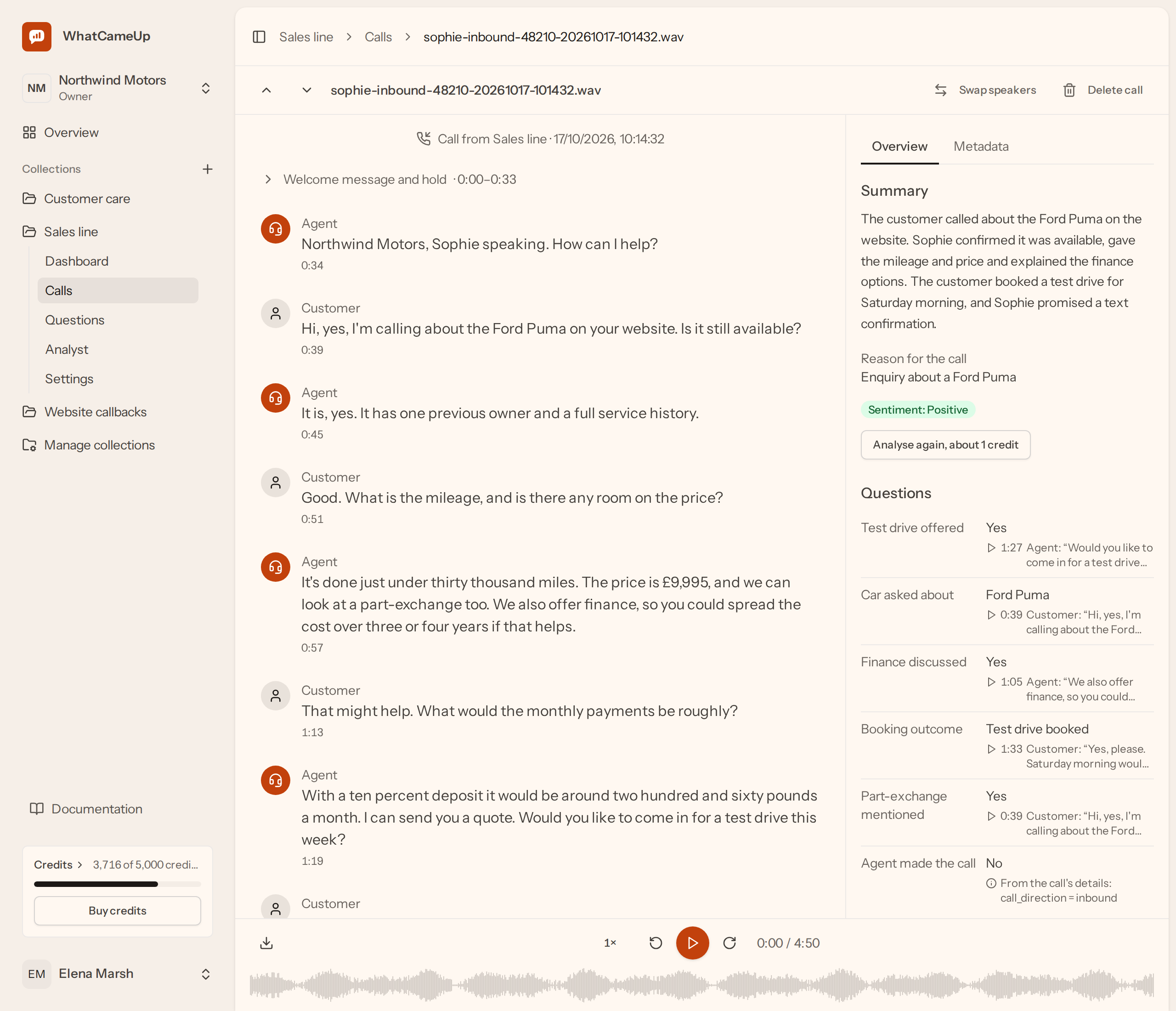
The transcript
The transcript runs down the middle, line by line, each with who said it and when. The phone system's welcome message and hold time come first, folded away. Click a line to play the call from there.
The player sits at the bottom, with its waveform. You can skip back and forward, change the speed, or download the recording.
A call sent through the API as its transcript has no audio, so no player: its lines are as your system sent them, and clicking the line an answer points to shows it in the transcript.
The overview
The panel on the right sums the call up:
- Summary: what the call was about, what the agent did, and how it ended.
- Reason for the call: why the call happened, in a few words.
- Sentiment: how the customer felt overall.
How the call ended is one of the collection's questions, answered with the others. Support and sales collections start with it. See Questions.
Where the collection tells its customers apart, Earlier calls with this customer lists the customer's calls before this one, as its analysis reads them, and says whether the customer called again within 7 days after it, with a link to that call. If the call was analysed before some of those calls were known or analysed, it says so, and offers to analyse it again (see Collections).
Everything is written in the collection's report language, whatever language the call was in.
Answers and evidence
Under Questions, each of the collection's questions shows the call's answer, and the line of the transcript that shows it. Click the line to hear that moment. An answer that came from the call's details, such as its campaign or which way it went, shows the detail, as well as or instead of a line. If that detail is later corrected or removed, the answer stops quoting it. An answer of Couldn't tell means the call didn't say; Not asked means the call was analysed before the question was added. If some questions were not asked, the call offers to answer them, with what that costs. See Questions.
Metadata
The Metadata tab lists what is known about the call: its call ID, the fields from its file name, its metadata file or the API, and the timings measured from the transcript, such as how long the customer waited.
Swapping the speakers
If a stereo call shows the agent's words under Customer, the agent was on the other channel. Choose Swap speakers to relabel the lines; a call already analysed is analysed again, at no cost. If all of a collection's calls are the wrong way round, change the Agent's channel in its Settings → Transcription, which offers to swap the calls already transcribed.
Moving between calls
The arrows at the top go to the next and previous calls in the list you opened the call from, keeping its filters.
Deleting calls
Team owners and admins can delete a call, with everything held about it, such as when someone asks for their data to be erased: choose Delete call on its page. A recording in your own bucket stays there, and is not imported again. This cannot be undone, and credits already used are not given back.
To delete several calls, tick them in the list and choose Delete; the box at the top of the list ticks every call on the page. When the list runs to more than one page, ticking that box also offers Delete all, which deletes every call the list shows, across all its pages, once you type their number to confirm. They are deleted in the background, which can take a few minutes, and calls that arrive meanwhile are not deleted. For example, to delete the calls whose files were removed from your bucket, choose Unreadable in the Status menu first.
Work queued on a call and not started yet is dropped, so you are not charged for it. A call being transcribed or analysed at that moment can't be deleted until that finishes: ticked calls stay, and the list says how many, while Delete all tries them again for a few minutes. Either way, you can delete what is left again.